File Selection
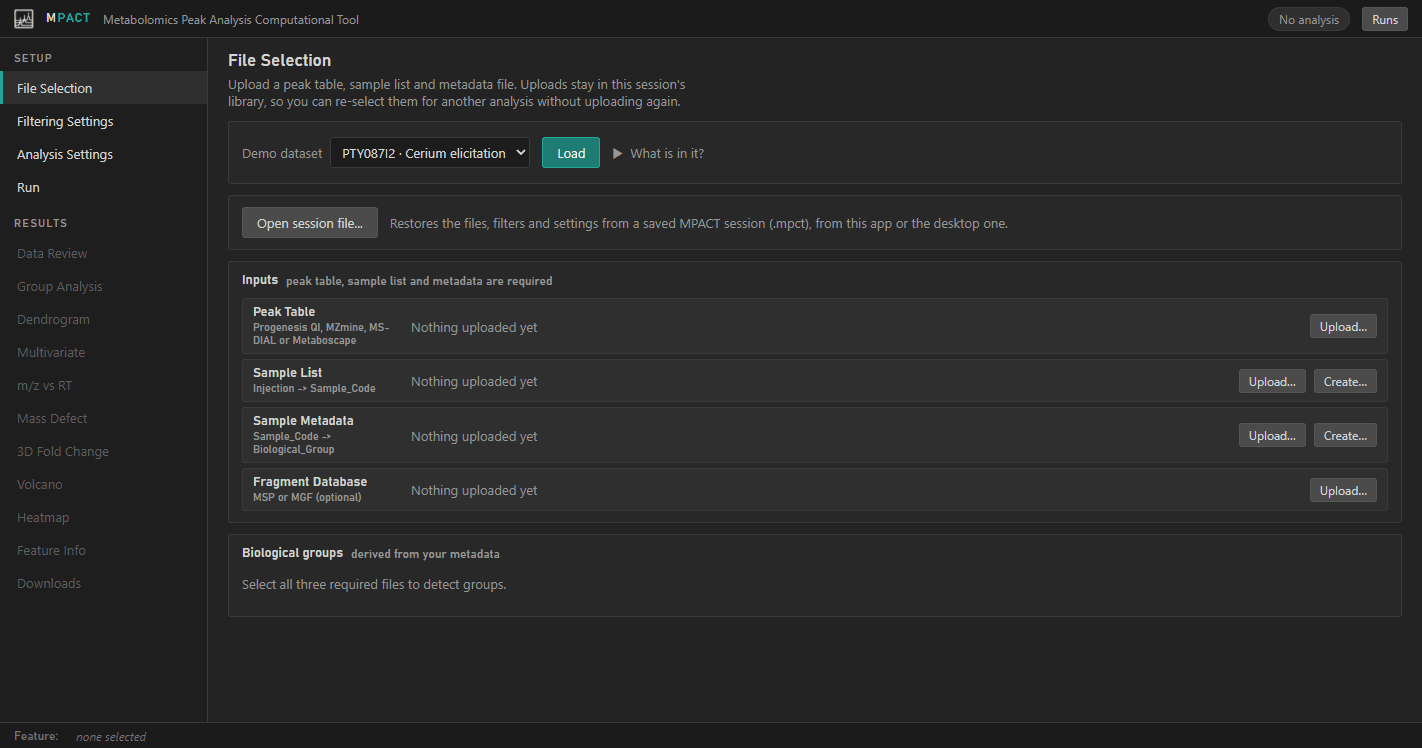
The page has four input slots: Peak Table, Sample List, Sample Metadata and the optional Fragment Database. When all three required files are selected, the biological groups found in the metadata are listed at the bottom of the page.
Uploading files
Click Upload… in a slot, or drag a file onto it. Each file is checked when it arrives:
- the peak table's format is detected and its features and injections are counted,
- the sample list and metadata are checked for their required columns,
- the fragment database's spectra are counted.
A problem is reported in the slot straight away, before you run anything.
Uploads go into your library. The drop-down in each slot lists every file of that kind you have uploaded, so you can run the same peak table again with different settings without uploading it again. Remove deletes a file from the library. Analyses that already used it keep their own copy.
The sample list and metadata slots also have Edit (change cells in place), Download and Create… (see below).
Demo datasets
The Demo dataset list loads a ready-made example. What is in it? describes the selected dataset.
- PTY087I2 fills all four slots. It is used in the Quick start.
- Some servers list additional datasets, such as a class's own alignments. These may fill only the peak table and fragment slots, leaving you to create the sample list and metadata. Some also set up the comparison groups and Plot Feature Sets for you.
Creating the sample list and metadata
Create… in either sheet slot opens an editor that builds both sheets from
the injection names. Most injection names already encode the sample and the
replicate, for example 200826_PTY087I2_0umce1_r1: sample 0umce1, technical
replicate r1.
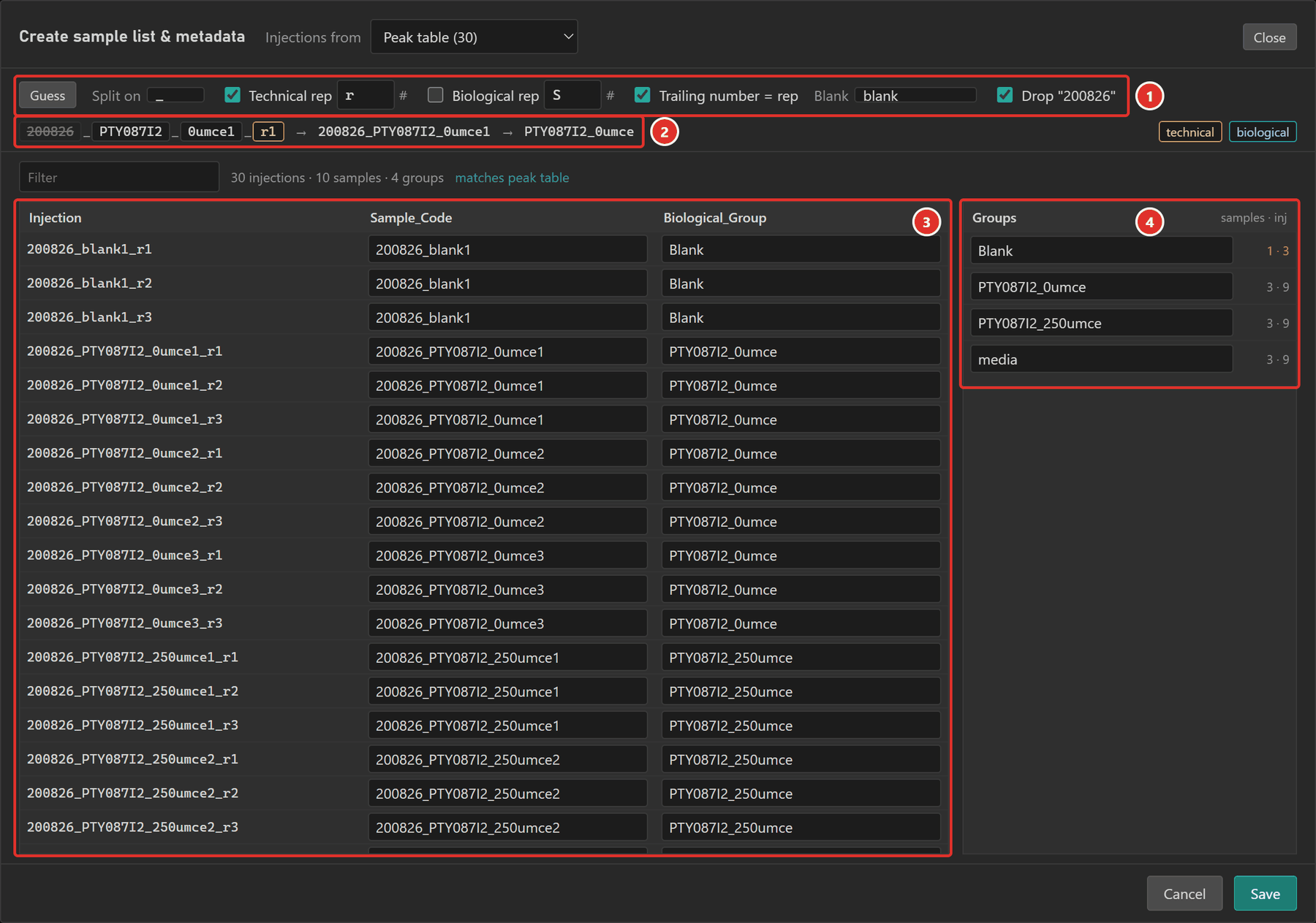
- Naming rules. Guess detects them from the names. Split on sets
the delimiter characters. Technical rep and Biological rep give the
marker before each replicate number (
rfor_r1,Sfor_S1). Trailing number = rep treats a trailing number as the replicate, somedia1,media2,media3become one group. This only applies where the numbers run 1 to n, so an ID likeCR13is left alone. Names containing a Blank term all go to theBlankgroup. Drop removes a prefix every name shares, such as a date. - Example. One injection name split into tokens, with the sample code and group it produces. Click a numbered token to mark it as the technical replicate, then the biological replicate, then neither.
- Table. The resulting sample code and biological group for every injection. Any cell can be overwritten. The line above the table counts injections, samples and groups and says whether the names match the peak table.
- Groups. Each group with its sample and injection counts. Rename a group here to rename it everywhere.
Injections from chooses where the names come from: the selected peak table,
an existing sample list, or an instrument sequence file (.csv, .txt or
.tsv). Save writes both sheets to your library and selects them.
If the selected sample list also covers other datasets, the rows for other injections are kept unchanged when you save.
Opening a session file
Open session file... restores the files, filters and settings from a
.mpct file. Session files come from the Downloads
tab or from the MPACT desktop app. After opening one, check the settings and
click Run to reproduce the analysis.